Compose in Swift
Layer nested sounds, rhythms and effects with SwiftMusic’s declarative API.
 MusicPlayground
A native macOS playground
for live music with Swift.
02 / Made to be played
Build sounds from sounds.
Turn patterns into rhythms.
Keep shaping them while they play.
// Compose sounds together.
var body: some Sound {
    RhythmSection()

    // Shape the filter live.
    SynthSection(
        acidAmount: slider(0.5, in: 0...1)
    )

    BusReturn("synths")
        .gain(slider($synthLevel, in: 0...1))
}Layer nested sounds, rhythms and effects with SwiftMusic’s declarative API.
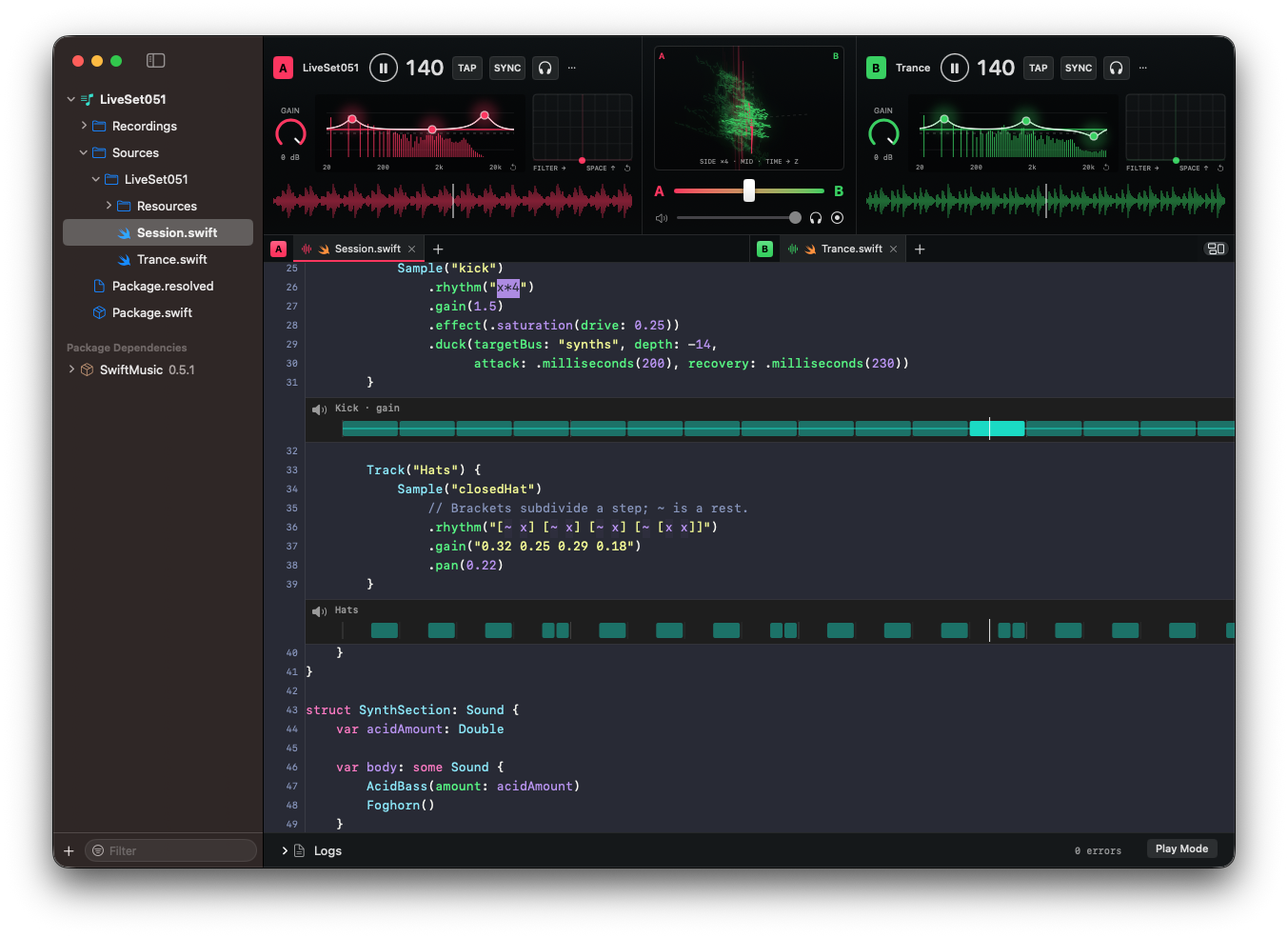
Mix independent sessions. Tap the tempo, sync the beat and scratch the waveform.
Waveforms, spectrum EQ and a shared vectorscope make the mix visible.
03 / Feel the performance
01 — Scratch
Move two or three fingers over a deck’s waveform to scratch forward or backward. Hear it even while the deck is paused.
Lift your fingers to return to playback, or to silence if paused.
Explore trackpad Play Mode02 — Headphone cue
Preview either deck in your headphones before bringing it into the main mix. Set the next moment while the audience hears the current one.
Select a headphone output different from the main output, then enable the deck’s headphone button.
04 / Play Mode
Enable Play Mode in the app’s bottom log bar. The cursor disappears, and the edges become independent performance controls.
Keep your hands on the mix
These shortcuts apply in Play Mode. Tap Command on its own, then release. Press Option for CUE; hold to preview, release to return.
| Key | Action |
|---|---|
| Space | Play / pause both decks |
| Left ⌘ Command | A Play / pause Deck A |
| Right ⌘ Command | B Play / pause Deck B |
| Left ⌥ Option | A Deck A transport CUE |
| Right ⌥ Option | B Deck B transport CUE |
| Shift + ⌥ Option | Return the corresponding deck to the track start |
| Esc | Exit Play Mode and restore the cursor |
CUE sets a point while paused or returns to it while playing. Switching apps exits Play Mode. Headphone monitoring uses the separate headphone button and requires an output different from the main output.
05 / Your first session
Build from source. Create a project. Press play.
macOS 15+ · Swift 6.4
Xcode command-line tools
git clone --branch 0.6.0 https://github.com/1amageek/MusicPlaygournd.git
cd MusicPlaygournd
./Scripts/build-app.sh
open .build/MusicPlaygournd.app
This preview is built locally from source. Keep your Swift compiler and SDK installed. Initial package resolution and compilation can take longer; progress appears in the sidebar.
Read the installation guide